Tag Archives: rest_api

Adding an existing host to a group in an Ansible Tower Inventory

With each new release of Ansible comes the addition of more Ansible modules provided as part of Ansible Core. However, sometimes the modules do not provide enough functionality. That is where other modules such as the uri module can be used to plug in any gaps.

An example of this gap is when adding an existing host to a group in an Ansible Tower inventory. The tower_host Ansible module can be used to add a host to an inventory on Ansible Tower, but cannot be used to add said host to a particular group (despite this functionality being available in the Ansible Tower Web UI). This can be frustrating if Ansible Tower is used as an inventory source (if there is a lack of an appropriate dynamic inventory to use).

There appears to be an open issue (https://github.com/ansible/awx/issues/5177) raised on Github to track this issue, but what if you can’t wait for an official fix?

There are a few solutions to this issue:

  • Use the command or shell module to run tower-cli to associate the host to the appropriate group in the Ansible Tower inventory.
  • The Ansible Tower REST API provides this functionality. However, it requires looking up the inventory ID and group ID.
  • Create a Smart Inventory and define a host filter.

The solution I’m going through though is using the uri module. Referring to the API documentation (https://docs.ansible.com/ansible-tower/latest/html/towerapi/api_ref.html#/Groups/Groups_groups_hosts_create), here is an example where I use the uri module to assign the host to the group in the following task:

- name: Add the host to a Tower Inventory group via API
  uri:
    url: "https://{{ ansible_tower_host }}/api/v2/groups/{{ group_id }}/hosts/"
    body:
      name: "{{ host }}"
      inventory: "{{ inventory_name }}"
    body_format: json
    headers:
      Content-Type: application/json
      Authorization: "Bearer {{ token }}"
    method: POST
    status_code: 204

With the above example, I have assumed you’ve authenticated previously in a different task and pass the token in the request header. The reason why I have chosen using the Ansible Tower API is that it does not require tower-cli to be installed either on the Ansible control node or where the task is running.

This is just a basic example, but hopefully can be used as a basis for something more substantial if required.
Workaround for a uri module issue in Ansible

Its worth noting that in the current version of Ansible (2.6.3-1) as of writing contains a bug (https://github.com/ansible/ansible/issues/37182) in relation to support for content type x-www-form-urlencoded, which will be fixed in the Ansible 2.7 release.  There is a workaround for this bug though, by setting the body_format to raw and then passing the body as form encoded string itself works.
Lets use an example calling keycloak for an authentication token. The keycloak REST API expects an x-www-form-urlencoded string containing the credentials to authenticate against:
- uri:
    url: "{{ keycloak_server_url }}"
    method: POST
    body: "username={{ keycloak_username }}&password={{ keycloak_password }}&grant_type={{keycloak_grant_type }}&client_id={{keycloak_client_id }}"
    headers:
      Content-Type: "application/x-www-form-urlencoded"
    validate_certs: no
  register: response
In this task, the body will be passed to the API as-is without the module trying to convert the body contents into JSON. The bug fix should make what is passed through to the API clearer though.

Consuming REST APIs using Ansible

One of the reasons why I like Ansible is the simplicity in its automation approach. As long as there is a module for what you’re trying to automate, chances are its easy to achieve.

However, not all functionality can be automated using core Ansible modules. If your application or service has a REST API though you can use the Ansible uri module. The uri module allows you to perform REST API requests in a declarative manner. What I like about the module is that you can then combine the response output of the request with supported Ansible jinja2 filters to perform powerful queries.

Lets use a simple example of obtaining the next available IP address from a network defined on an Infoblox grid appliance using the Infoblox REST API.

As per the Infoblox REST API reference guide, firstly you will need to obtain the Infoblox network reference as it will be used in subsequent API requests. The Ansible task for that would something like this:

- name: Obtain Infoblox network reference for 172.25.25.0/24
  uri:
    url: "{{ infoblox_url }}/network?network={{ network_address }}"
    method: GET
    user: "{{ infoblox_username }}"
    password: "{{ infoblox_password }}"
    validate_certs: no
  register: network_ref_response

where {{ infoblox_url }}, {{ network_address }}, {{ infoblox_username }} and {{ infoblox_password}} are Ansible variables defined either earlier in the playbook or passed through as extra_vars on the command line.

The register statement is key here. It tells Ansible to store the output of the task into another variable called network_ref_response. If you want to view the contents of the variable, you can either use debug mode (pass argument -vvv on the command line) or the debug module, which will dump the variable contents in stdout.

Next I will want to extract the Infoblox network reference and the session cookie (so I don’t have to pass through user/password on every request). To do this I use the set_fact module, which I can use to assign values to a ‘fact’ variable for use later on.

- name: Extract the Infoblox reference for the network
  set_fact:
    network_ref: "{{ network_ref_response.json[0]._ref }}"
    infoblox_cookie: "ibapauth={{ network_ref_response.cookies.ibapauth }}"

The Infoblox network reference will look something like the following:

network/ZG5zLm5ldHdvcmskMTcyLjI1LjI1LjAvMjQvMA:172.25.25.0/24/default

Now using the network reference, I can query the Infoblox REST API:

- name: Query Infoblox network for next available IP address
  uri:
    url: "{{ infoblox_url }}/{{ network_ref }}?_function=next_available_ip"
    body:
      num: 1
    body_format: json
    method: POST
    headers:
      Cookie: "{{ infoblox_cookie }}"
    validate_certs: no
  register: network_next_ip
Notice the body section of the task. In YAML it is known as a dictionary. If you specify the body_format as json, Ansible will actually convert the dictionary into json and POST it to the API:
{
  "num": 1
}
Here is the actual API response:
"network_next_ip": { 
       "cache_control": "no-cache, no-store",  
       "changed": false,  
       "connection": "close",  
       "content_type": "application/json",  
       "cookies": {},  
       "cookies_string": "",  
       "date": "Thu, 30 Aug 2018 06:08:43 GMT",  
       "failed": false,  
       "json": { 
           "ips": [ 
               "172.25.25.1" 
           ] 
       },  
       "msg": "OK (unknown bytes)",  
       "pragma": "no-cache",  
       "redirected": false,  
       "status": 200,  
       "transfer_encoding": "chunked",  
       "url": "https://infoblox/wapi/v2.0/network/ZG5zLm5ldHdvcmskMTcyLjI1LjI1LjAvMjQvMA:172.25.25.0/24/default?_function=next_available_ip" 
   }
As you can see in the json object, the API returns a list of IP addresses you can consume. Ansible supports either [] or dot notation for accessing dictionary values. Therefore using the IP address would look something like the following:
- debug:
    msg: "{{ network_next_ip.json.ips[0] }}"
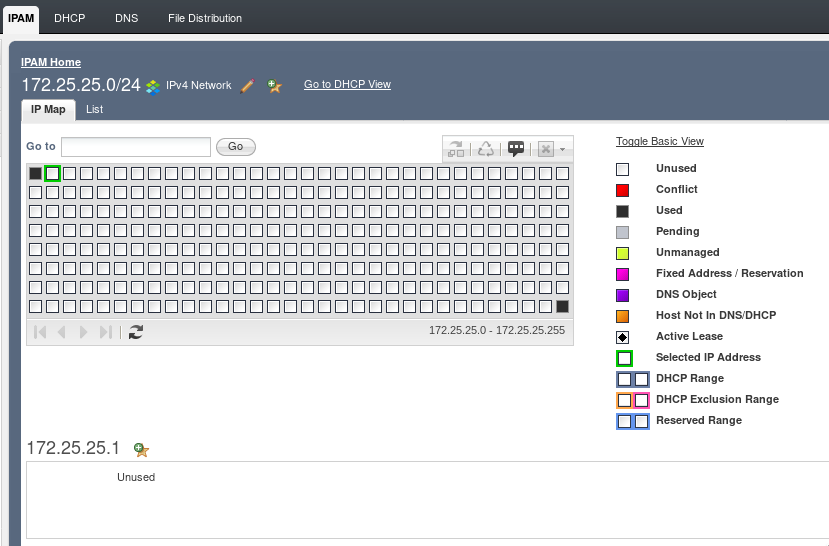
To confirm, here’s the network map in Infoblox:
infoblox_network_view

The next available IP address for that network is indeed 172.25.25.1.

Although you could in theory use a bunch of curl commands to achieve the same outcome,  I think it is much easier to do this using Ansible without convoluted logic.